Read more at:
When you suspend a game on the Xbox Series X and S, the console captures a snapshot of its current state and saves it in RAM instead of closing it. That’s how you’re able to immediately jump back into a suspended game from the Home screen, picking up right where you left it — no loading screens. But the Xbox also has Quick Resume, a feature that moves the game’s current state from RAM and into internal storage when you open another game. It doesn’t close it like the Sony PlayStation 5 or Nintendo Switch 2 does. When you switch back to the first game, Quick Resume loads the previously saved state back into RAM, allowing you, again, to continue exactly where you suspended it.
This is thanks to the console’s lightning-fast NVMe solid-state drive (SSD). It consistently delivers a throughput (the amount of data moved per second) of 2.4 gigabytes per second (40 times more than the Xbox One). However, Quick Resume can sometimes fail because the game doesn’t support it, has updated while suspended, or has online functionality that is interfering with the feature. As a consequence, you shouldn’t always expect Quick Resume to save the current state of the game, making manual saves important. There are even times when you must disable it because games are glitching.
This is not a case against using Quick Resume. You should absolutely use it, because it’s a massive time saver. This is especially true when you consider that a game’s Quick Resume state can persist even when you shut down the Xbox console.
Don’t always rely on Quick Resume

Some games allow you to manually save anytime you’re not engaged in combat, dialogue, or cutscenes. Other games require you to be in a safe room to save. Games like roguelites usually have no mid-run manual saves, but you can trigger an autosave in some of them when you clear an encounter or enter the next area. Just be sure to note the specific save requirements for the game you’re playing before relying on Quick Resume. If you’re heading out and can’t meet them right away, pause the game (if it allows) and leave the Xbox in sleep mode.
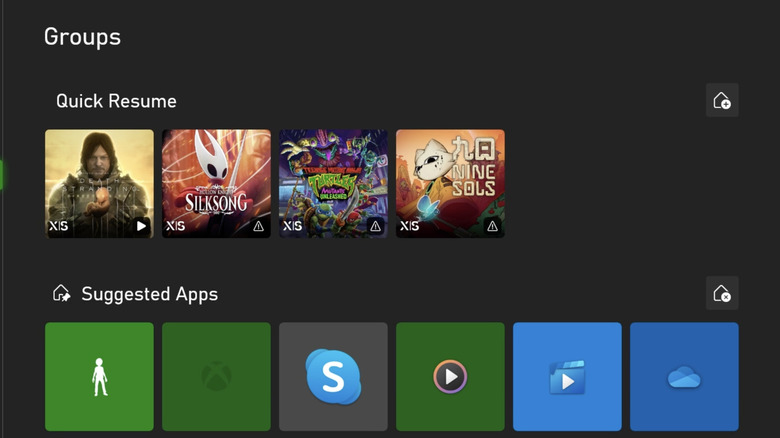
One reason Quick Resume doesn’t always work is that Microsoft hasn’t enabled it for that title, which is sometimes the case for less popular games or those played less frequently. To confirm that a game supports Quick Resume, look for the Quick Resume notification in the top right corner of the screen when the game is loading. Alternatively, press the Xbox button to open the guide, go to My games and apps, select See all, then Groups, and look in the Quick Resume group.
Other times, Quick Resume can fail because the game received a mandatory update while it was suspended. The Xbox will close the game entirely in order to install it. Also, while Quick Resume works with online games, it might not always allow you to pick up right where you left off. Instead, the game might boot you to the menu screen, causing you to lose progress.
You might not always be able to use Quick Resume
Although not common, Quick Resume can cause a game to experience glitches. While many users on social media and forums have pointed this out for various titles, a more famous example is Forza Horizon 6. With this game, a player’s save file can either go missing or be reset, making them lose hours of progress. To help players, Forza Support has advised players to submit a ticket so that they can see if an earlier save can be recovered.
As of Fall 2026, even after multiple updates to the game, the developers of the game, Playground Games, have not released any fix that completely resolves the issue. As written on the Forza Support website, players are advised to disable Quick Resume to reduce the risk of lost or corrupted save files. Unfortunately, you can’t disable Quick Resume globally if you’re experiencing issues with several games. You must do it on a per-game basis.
Here’s how to disable Quick Resume for a game on Xbox Series X and S:
-
Press the Xbox button.
-
Select My games & apps.
-
Select Games.
-
Press the Menu button.
-
Select Manage game and add-ons.
-
Select Quick Resume settings.
-
Tick Disable Quick Resume.