Read more at:
When it comes to customization, macOS gives users plenty of ways to personalize their Apple-branded tech. One part of the user interface you’re able to change is the account picture that appears on your MacBook Lock Screen. This is also the same photo that’s shown on the login screen, in System Settings, and in most other spots where your Apple Account info is displayed. Apple even gives you more than one way to change your profile picture, and it all starts with System Settings (or System Preferences if you’re using macOS 12 or earlier). Here are step-by-step instructions:
- Launch System Settings, and select Users & Groups.
- Select the photo that pops up next to your profile name.
- You should see three customization options: “Select a Memoji,” “Select an emoji,” and “Select a monogram.” For the first two, click the plus icon to choose a new Memoji or emoji.
- After you choose an image, you’ll be able to modify its exact placement within the cropped circle. You’ll also be able to zoom in and out using the on-screen slider.
- Choose “Save” to complete your edits.
One thing to keep in mind is that you won’t be able to change the photo for a secondary user who’s already logged into their profile. In order to do so, the other user needs to actively be logged in. They’ll also need to be logged out for another user to be able to change their account image.
Here are three more ways to customize your account image in macOS
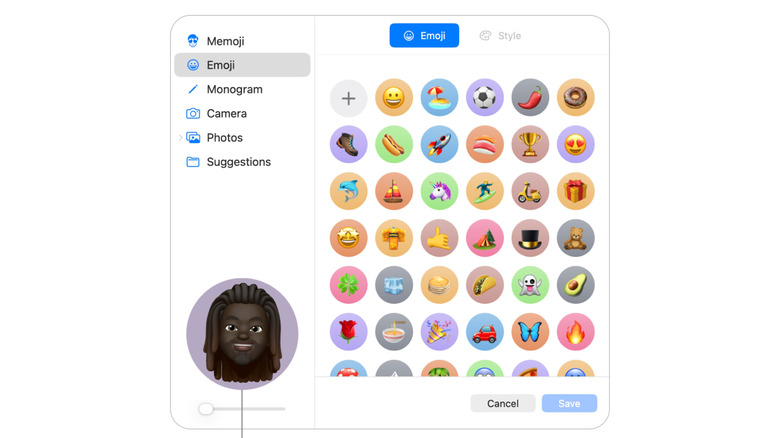
If you want to go beyond Memojis and emojis, Apple gives you another three methods for customizing your user profile picture, and the first is via Photo Booth. This is a built-in macOS app that uses your Mac’s camera to snap a photo. To get started, open the Camera app, frame your shot the way you’d like it to be taken, and then click the camera button when you’re ready.
You can also select an image from your Mac’s Photos app to replace your user picture. To do this, you can just use Finder to locate a picture and then drag the image to the user image circle. Lastly, if you’d rather leave the thinking up to macOS, you can click Suggestions and then choose an image. Similar to Memojis, emojis, and monograms, you can move your new image within the cropped circle or use the slider to zoom in and out.
Apple goes to great lengths to ensure macOS runs smoothly, whether you’re switching between multiple open apps or making a cosmetic change to the profile image that’s attached to your Apple Account. The latter process really hasn’t changed much over the years either, so even a macOS using an older OS will have just as easy a time changing the user image as someone using the latest version of macOS.



