Read more at:
Smart View is a feature of Samsung Galaxy devices running Android 4.3 or higher that mirrors the display of your phone or tablet to your smart TV. This lets you view media on the big screen while still controlling it with the device in your hands. Other manufacturers include similar wireless casting features in their phones and tablets, and all of them constitute a smart way to use streaming devices and smart TVs, though Smart View has cool features of its very own.
But what’s the actual point of Smart View? If you were watching a show or movie on your phone while on the go, you can kick back and cast it to the TV once you’re home without missing a beat. It’s also a great way to share video or media with everyone in the room or to resume working on a project that you started on your phone. Gamers might even use it to play exclusive Google Play games on the TV as if it were a home console experience. It’s pretty convenient right out of the box, but there are actually two handy features that you should use with Samsung Galaxy’s Smart View to make it even better suited for all of these tasks.
Mobile voice assistant

One of the main reasons you should install a voice assistant in your smart home is that it’s so convenient to watch TV without needing a remote control. But what if that’s not a practical option for you? No problem, because your Samsung Galaxy device is compatible with a digital voice assistant named Bixby. When you cast your Galaxy screen to your TV with Smart View, you can still give voice commands to your mobile device. This gives you the power to control media on the big screen without actually needing to integrate a voice assistant with the TV itself.
To set up Bixby Voice, start by holding the side button on your Galaxy device, sometimes called the Bixby button. Follow the on-screen instructions to set up a Samsung account if necessary and agree to the terms of use. You can then set up a wake-up phrase, such as “Hi Bixby,” that will initiate voice control, or simply use the Bixby button whenever you want to give a command.
If you prefer a different voice assistant, such as Google or Alexa, you can choose one of them as your default digital assistant on your Galaxy device instead. Do this by navigating to your device’s Settings menu, then tap App > Choose default apps > Digital assistant app > Digital assistant app again. And if you’re not sure of how to make the most of voice control while using Smart View, start with these essential voice assistant commands once you’re ready.
Cast app only
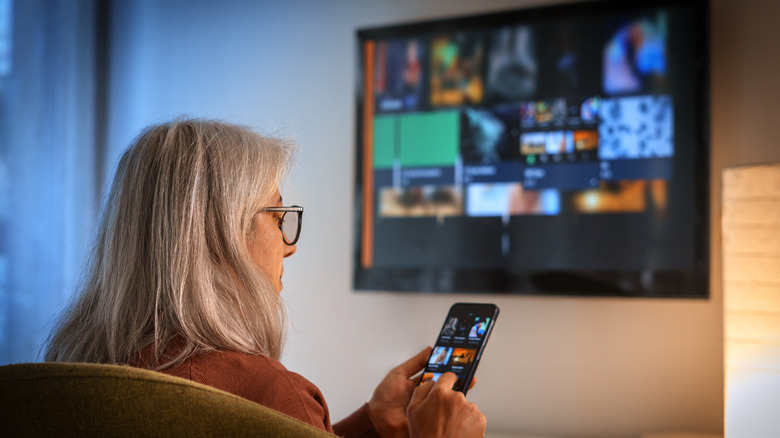
The Smart View feature on your Samsung Galaxy device has a “Cast app only” option, which ensures that only the active app will be mirrored to your TV. This means that messages, notifications, and other apps you open will not show up on the screen you’re casting to. It’s a useful solution for protecting your privacy and avoiding any awkward moments when a personal message might come through on full display for everyone to see on the TV screen.
To enable “Cast app only,” tap the floating icon that’s visible on your Galaxy device’s screen during Smart View. This brings up a menu with a list of options you can select, including “Cast app only.” Once enabled, you’re all set to multitask by opening a separate app on your device while the original app continues to stream to the TV.
In fact, it’s likely that your smart TV already has a multitasking feature of its own, such as Multi View or Picture-in-Picture. You can really maximize your productivity by casting an app to your TV, relegating it to one Multi View panel, and performing an additional task on the TV — all while separately opening an essential Android productivity app on your mobile device to keep track of it all.



