Read more at:
Turning a computer into a media center is not that hard, since tons of old equipment can play HD video. You can go all the way back to a seventh-generation Intel processor from 2016 and still support modern codecs like HEVC (H.265) and VP9. Of course, if you plan to stream your owned content, you’ll want to ensure your network can handle the load, as 4K video can demand 25 Mbps to 50 Mbps per stream, which any modern router can handle. The truth is, the tech you need to get this project running is likely already installed in your home and built into one of your old PCs.
You’ll want a hard drive to store your HD media. You can replace an existing drive or add a new one to the setup, but any size will do; external drives can be added later once you need more room. Optionally, an optical media drive, like an old DVD or Blu-ray player, can come in clutch, especially if you’d like to rip your physical media to your hard drive.
You’ll also want to make sure your computer has enough RAM8GB is sufficient for media center apps like Jellyfin and Plex, though Kodi runs on a 1GB floor for those with older hardware. Lastly, an Ethernet port on your computer will be handy for a more reliable data connection, but a Wi-Fi card can also work — and you’ll need an HDMI-out port. Basically, many computers built in the last decade can replace streaming devices. If you don’t own an old computer, the aftermarket has you covered to keep things cheap. So, once you’ve ensured your network and old computer fit the bill, converting the device into a media center can be done by spending very little or even nothing.
Choose a free or subscription-based media center app
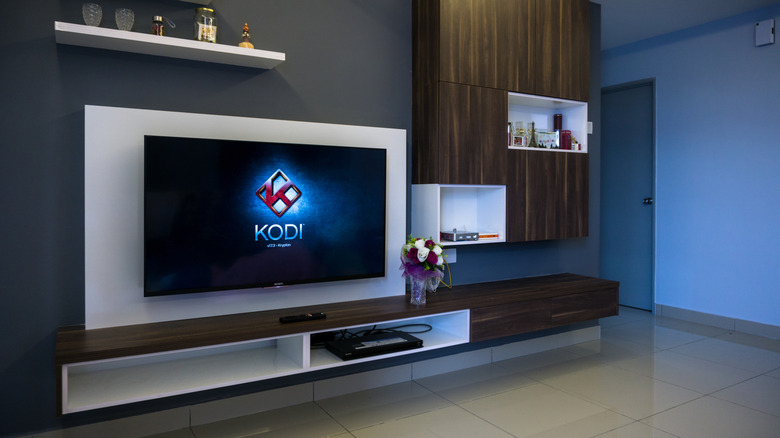
Now that you’ve verified your equipment is up to the task, you’ll need to choose an app as the core of your media library. The good news is that there are plenty of free options, with a few that offer subscriptions for extra functionality.
As a standalone app with no subscriptions or fees attached, there is Kodi, an open source media center application that can easily play a wide selection of local media. It reads files on hard drives, flash drives, or discs. It’s so incredibly lightweight that it works optimally with 2GB of RAM, which means it supports a wide selection of hardware. Kodi also has plenty of awesome add-ons and can function as a media server, should you wish all devices in your house can stream content from central database.
Still, there are more polished methods for running your own media server, and this is where Plex or Jellyfin come in. These, too, are quality media center apps that can handle just about any local media you want them to run, even though they are built with streaming content from one central server in mind. While Jellyfin is completely free and open source, it’s more challenging to configure than Plex, which is easier touse but locks some of its best features, like remote streaming, behind a monthly $7 subscription. Whether you wish to spend money on a media center application is totally up to you, but it’s not mandatory.
Configure your media center for a more polished experience
You’ve got the hardware in hand and installed one of the essential TV apps to get your media center up and running. Now, it’s time to configure your machine to ensure a streamlined experience for any living room.
Whether your PC runs Windows, Linux, or macOS, it’s a good idea to turn off any automatic sleep settings in the operating system, as the last thing you want is your media center going on standby in the middle of a movie. You should also pick up a wireless smart TV remote (usually as cheap as $10) that’s compatible with PCs, as these often come with a USB dongle you can connect to a port in your media center. It’s a minor investment that improves the experience and lets you easily turn the device on and off.
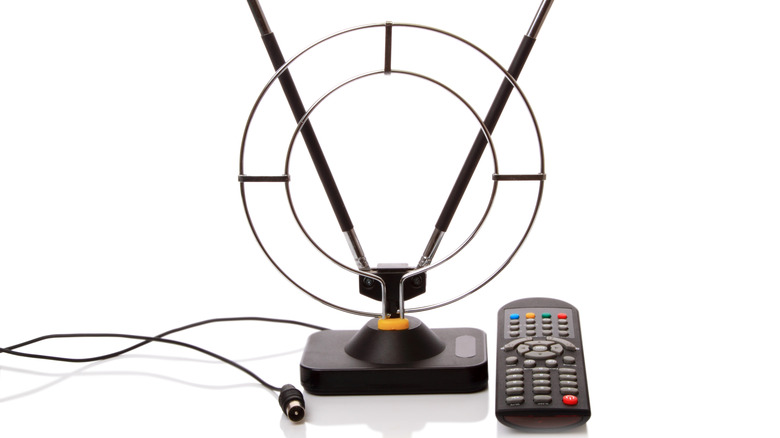
Another optional expense that won’t break the bank while supplying you with fresh content is a DVR tuner and TV antenna. For instance, Plex supports USB tuners like the $80 Hauppauge WinTV-HVR-955Q even when running on Linux. Add a TV antenna that sells for as little as $16, and now you’re receiving over-the-air channels straight to your media center, where you can also record and store content to rewatch later. Compared to a recurring cable bill, this is a cheaper investment, though Plex Pass is required to record. The good news is that Hauppauge provides the WinTV application with its tuner, which can record without a recurring fee. So, you have options to keep costs as low as possible, depending on the software you’re using and the OS you’re running.



