Read more at:
We’ve all been there — your tried-and-true laptop starts to chug a little, giving you headaches when you try to do anything even slightly intensive. While expert consensus has already spoken on when you should upgrade your old laptop, there’s another, more discreet way for you to squeeze some extra performance out of your device. One of the simplest and most affordable ways to upgrade your laptop is to swap in some higher-capacity RAM.
To be fair, with countless large AI data centers sucking up the supply of manufactured RAM, the current market isn’t quite as affordable as it was even just one year ago. Consumer laptop specs are slated to completely change for the worse in 2026, in part due to skyrocketing RAM prices. So, while buying new RAM isn’t the obvious slam-dunk solution that it once was, you can still make some surprising upgrades for a relatively modest price, especially if your laptop is older. Increasing your total RAM capacity with older-generation chips is one such upgrade. You’ll need to consider some important points, however, when deciding what to buy. Let’s break down what you should look for and how you can change your laptop RAM.
First, check if your laptop has detachable RAM, then learn how to swap it
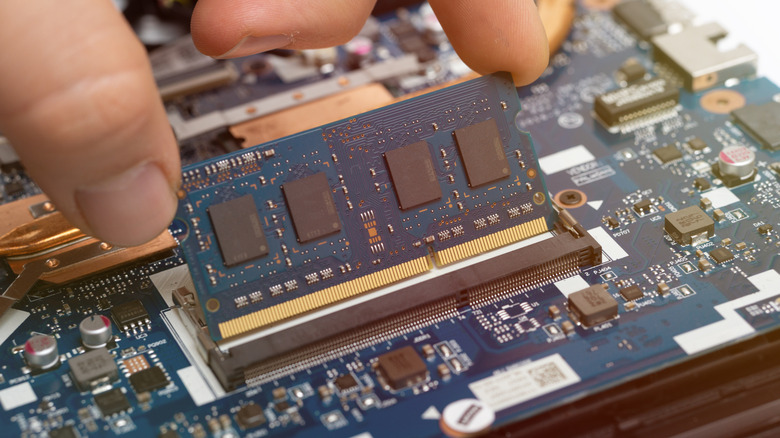
Before you can even consider whether a RAM upgrade is right for you, you’ll need to determine whether or not your RAM can be removed. In general, that boils down to whether the RAM that came with your laptop is a separate, detachable component or soldered directly onto your motherboard. The last MacBooks with removable memory were made in 2012, so most Apple laptop users won’t be able to upgrade their RAM capacity. That said, many Windows laptops — particularly in the gaming category — contain detachable RAM sticks that you can swap out for faster or higher-capacity ones.
You should look into replacing your laptop’s RAM only after you’ve confirmed that you’ll be able to replace it. When the time comes for you to make the switch, it’s best to look up guides on reputable sites, such as iFixIt, and follow their replacement instructions. The general process is surprisingly simple: After powering off your machine and unplugging any chargers or devices attached to it, you’ll always start by opening up your laptop at the base. Following that, it’s best practice to unplug the laptop battery (if you can) to prevent shorting. Skipping this step is one of the biggest mistakes DIYers make when modding their laptops. You’ll then need to remove any stabilizing screws, unplug the RAM stick from its slot, then do that whole process in reverse after you plug your new RAM stick in. But before you undertake any of those steps, you’ll need to ensure the RAM you’re buying is compatible with your machine.
How to choose the best RAM for your laptop upgrade
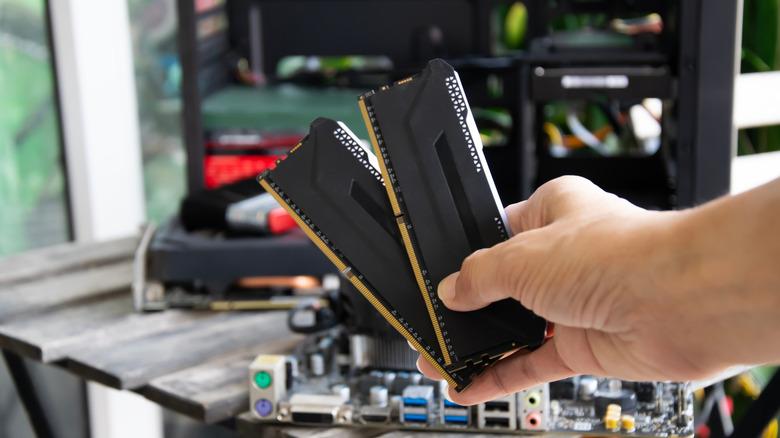
Before pulling the trigger on new sticks of RAM, it’s crucial to make sure they’re compatible with your device. Newegg has a handy “Memory Finder” tool that allows you to identify RAM offerings that are compatible with your existing hardware. You can also look at your laptop’s specs to determine the maximum quantities and speeds of RAM it can support. In general, laptops use the smaller SO-DIMM form factor, and — in most cases — only a specific generation of RAM, such as DDR4 or DDR5.
Let’s define what constitutes “good” RAM for your laptop and how it can improve your computer’s performance, especially if it’s struggling with certain applications. First, maxing out your laptop’s RAM capacity will allow for more memory caching and reduce slow performance caused by existing memory bottlenecks. This can ultimately translate to improved speeds in tasks like video editing, audio production, and gaming. So, if your laptop currently has 8 gigabytes of RAM but could handle up to 32, switch to the greater-capacity option — that’ll broaden your machine’s ability to handle memory-intensive tasks.
One important note: If your laptop uses DDR4 RAM, you almost certainly can’t put DDR5 RAM in it. The RAM slots for either option are physically different; while DDR5 is faster, it may not be physically compatible with your laptop. Even RAM sticks in the same generations can differ in speed, capacity, latency, and form factor. So be sure to check all details when shopping for RAM, and pay special attention to transfer speeds to see if you can get a faster RAM stick within your generation.



