Read more at:
An aging laptop (or any computer, for that matter) is a perfect equivalent of an elderly citizen. Despite best efforts, the age of essential components will absolutely show at one point or another. For instance, the processor will begin to choke on tasks, and in some cases, your trusty CPU may show clear signs of imminent failure. However, something that many laptops struggle with, even if they’re not that ancient, is battery life – and believe it or not, it’s not the hot CPU that’s draining it faster than it should.
While a CPU may draw more power during intensive tasks and increase the toll on your battery, it’s not the biggest power hog in a laptop. Instead, the screen is the bigger draw, since lighting a 13-inch panel or larger takes plenty of juice. If you don’t trust Intel, or companies in general, an independent study from Jacksonville University also confirmed this fact and even revealed clear figures.
The study measured different brightness levels and how long each took to drain 5% of the battery. Guess how much time it takes to deplete 5% at 100% screen brightness? On average, 815 seconds, or roughly 13 minutes. Bumping the brightness down to 70% doesn’t make much difference in the real world, extending the time to about 20 minutes. The experiment consisted of watching YouTube videos, but if this doesn’t convince you not to push the brightness above 50%, nothing will.
What are some other ways to save battery?
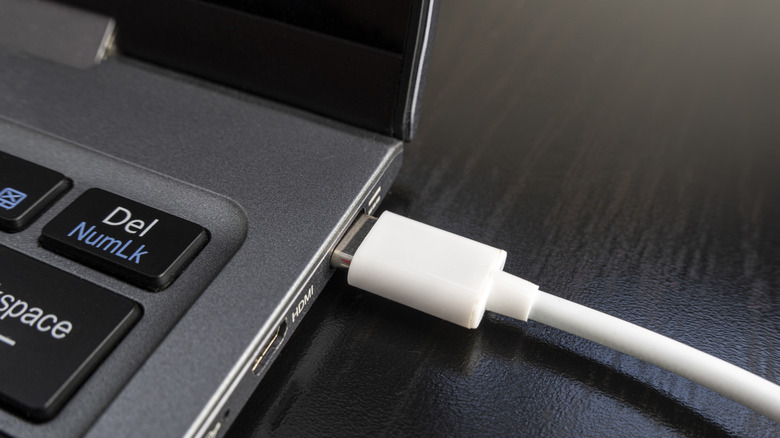
You may be doing things daily that actively ruin your laptop’s battery, like letting it drain to 0% constantly. Blocking airflow is another huge thing. Placing the laptop in your lap may be comfy and seem natural (after all, the lap is in the name), but it blocks vents and makes the rig run hot enough to double as a space heater. So make sure you have enough airflow for proper operation. Once you do that, you can’t go wrong by digging deeper into the settings.
True, you’ll get more mileage by keeping the screen brightness to a minimum, but clearing up unneeded CPU processes will certainly help. Start with the trusty old Ctrl+Alt+Delete, open Task Manager, and switch to the Processes tab. Go into the Power usage column, and you’ll be able to see which apps are draining too much power (very likely that Google Chrome is using up too much CPU if you’ve got a few tabs open). Kill anything you don’t need by right-clicking it and selecting End Task.
Of course, you can do this periodically when you notice your computer is struggling. However, if you are rocking an older machine, then you may not be able to squeeze anything more out of that old battery. So it might be time to replace the battery. It’s certainly worth the price as it’s an easy way to give your laptop an extra few years – but just not on your lap.