Read more at:
We may receive a commission on purchases made from links.
It’s not in your head — sometimes the audio coming out of your iPhone doesn’t sound quite right. Muffled audio, for instance, can mean that something is off with the speaker. Sometimes, the audio can suddenly drop in quality when you switch to cellular data, likely indicating some data-saving settings are in effect. You may even just want to enhance audio in other ways, whether it’s based on personal tastes, a need for immersion, or your inner audiophile craving a lossless sonic experience.
Whatever the case, you can improve the audio quality on your iPhone with a few tweaks. These include cleaning your speakers, adjusting the equalizer settings, and enabling options like Spatial Audio. Some of the solutions will require you to buy an inexpensive accessory that allows you to use wired headphones instead of wireless headphones to escape the lossy compression of Bluetooth audio. One thing about cleaning your iPhone’s speakers is that, if it doesn’t get rid of the muffled audio, there could be a hardware fault. If your iPhone still has AppleCare (the basic, free one-year warranty that comes with every iPhone from the date of purchase) or the AppleCare+ extended warranty, you can send it back to Apple for servicing.
Getting the best audio quality from your iPhone speakers
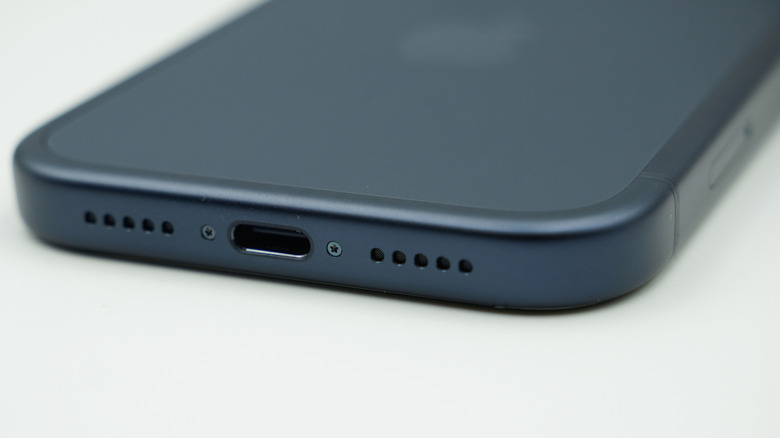
Dirt and debris that build up on your iPhone speakers can cause muffled sounds. It’s best to clean your iPhone’s speakers, but you should turn off your iPhone before you do. Then use a soft-bristled toothbrush to gently brush the speaker grills at an angle, ensuring you’re sweeping out the dirt and debris instead of pushing it farther back in. You can also use a rubber air blower (the one that looks like a bulb) to blow air into the speaker grills at an angle to push out the debris. Another option is special putty designed to clean iPhone speakers, like Stikki Cleaning Putty.
If your music drops in sound quality when using cellular data, you can fix that in settings. For Apple Music, go to Settings, then Apps, then click Cellular Streaming and set it to High Quality. For an app like Spotify, you can use in-app settings. Go to Settings and privacy and choose Media quality. Under Wi-Fi streaming quality, select High or Very High. Do the same under Cellular streaming quality and Audio download quality (tap Download next to Update existing downloads to redownload high-quality audio versions of your content).
If you want to balance the sound, boost bass, or make vocals clear, then you need to tweak the equalizer settings. To do that for Apple Music, go to Settings, then Apps, then EQ, and choose one of the audio presets. On Spotify, go to Settings and privacy, then Playback, then Equalizer. Toggle on Equalizer and choose one of the audio presets.
Getting the best audio quality from your earphones and headphones
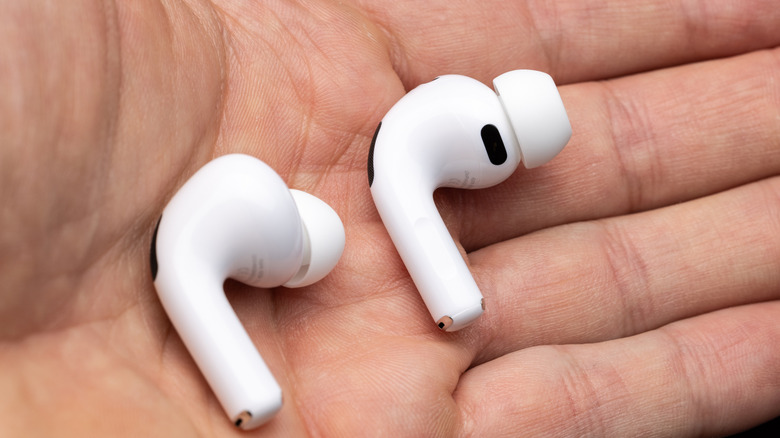
When using headphones, the iPhone has a way to help you tweak audio quality based on your subjective listening profile. It’s called Headphone Accommodations, but before you use it, undo any of the EQ settings you did above. Then, go to Settings, then Accessibility, then Custom Audio Setup, then Audio & Visual, and choose Headphone Accommodations. Toggle on Headphone Accommodations and tap Customize Audio. Select Continue and listen to the audio samples to figure out which sounds the best to you.
If you want a more immersive listening experience on your AirPods, you can enable Spatial Audio. It gives you 3D audio, making it seem as though the sound is coming from all around you. To enable it, open the Control Center, tap the volume bar, and select either Fixed or Head Tracked. That latter option means the sound follows your head’s movement.
If you’re still craving better audio from your iPhone, you can try wired headphones for lossless audio. But since Apple removed the headphone jack with the iPhone 7, you will have to rely on a USB-C to 3.5-millimeter jack adapter. What many people don’t know is that the iPhone’s USB port can actually output audio. A good option is the Subynanal USB-C-to-3.5-millimeter Headphone and Charger Adapter for iPhone 15 or newer. It costs $9.99 on Amazon and also has a USB-C connector for charging your phone while you enjoy audio over your wired headphones.