Read more at:
A modern iPhone is great for many things, especially when it comes to notifying you about certain issues. When you look at an iPhone’s display, you may see a variety of icons that provide information about your device. However, some of these icons, like the half-moon symbol, are only useful if you actually understand what they’re trying to convey.
So why is your battery icon yellow? If you’re not familiar, the battery icon on an iPhone will turn yellow when the device is in Low Power Mode. It can be a useful feature that works well with your device’s battery, but it also comes at the cost of reducing some of your iPhone’s features and hardware capabilities. Fortunately, this mode is only enabled in certain situations, and Apple provides users with multiple ways to disable it. Naturally, should you find that you like it, there are also ways to ensure that it never turns off.
Considering battery life can be rather valuable, users should be aware of the ins and outs of Low Power Mode to ensure they’re getting the most out of their device. When your device is in this mode, it will behave differently. This includes disabling 5G on most devices (excluding the iPhone 12 and 13 lineups when downloading large files or streaming video) and reducing display brightness, among other areas where certain features are reduced.
How to disable Low Power Mode on iPhone
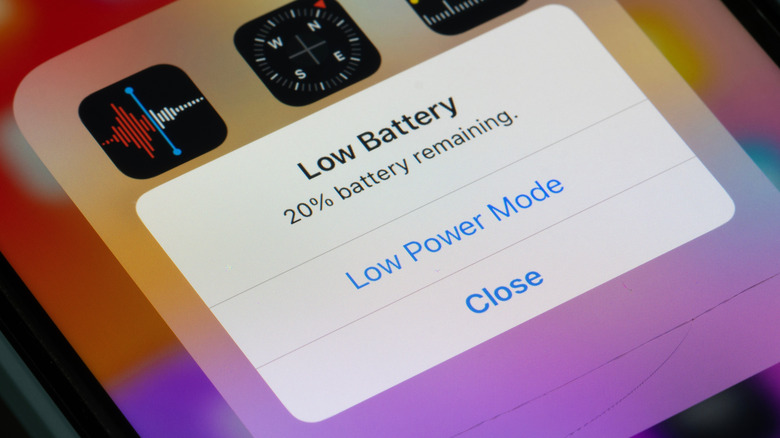
If you’re curious why your battery icon is yellow on your iPhone, it’s because the device is in Low Power Mode, and it may actually be a feature you want to use more often. Introduced way back in 2015 with iOS 9, this mode can help extend your battery life, but it’s also going to reduce your iPhone’s functionality. If you don’t like it, there are ways to disable Low Power Mode.
Here are the steps:
-
Open Settings on your iPhone.
-
Choose Battery.
-
Select Power Mode.
-
Tap Low Power Mode to enable it or disable it.
Those using an iPhone 14 or earlier may need to navigate to Settings, choose Battery, and then enable or disable Low Power Mode. You can also ask Siri to turn Low Power Mode on or off, or disable it in Control Center through the Battery icon. Note that devices with Adaptive Power enabled will automatically enable the feature when the device drops below 20%.
Low Power Mode also disables certain features, including visual effects and background app refresh. On devices with ProMotion displays, it also limits refresh rates to 60Hz. You may notice the difference more when doing resource-intensive tasks, as this mode throttles your GPU and CPU. However, Low Power Mode automatically disables when a device charges to 80% or higher. Of course, you can always charge the device with the appropriate cable to ensure Low Power Mode properly goes away.



