Read more at:
Longtime iPhone users may be familiar with the crescent- or half-moon symbol that appears in the iPhone’s status bar, assuming they’ve used the handset’s Do Not Disturb or Focus mode at least once. New iPhone buyers may be surprised to see it after activating a Focus mode for the first time, though. The symbol is called the Do Not Disturb icon, according to Apple, and it was first used for the Do Not Disturb mode introduced in 2012 via iOS 6. Nearly a decade later, Apple’s iOS 15 introduced Focus modes, which included the original Do Not Disturb mode. That Do Not Disturb mode inherited the crescent-moon icon. The icon also appears in Control Center to designate the Focus mode menu.
Before these new modes were introduced, the simplest way to silence an iPhone was to use the Mute switch, but the handset could still vibrate with each incoming notification. The Do Not Disturb mode that came with the iOS 6 update allowed users to completely silence the handset. Calls and notifications would not go through unless they came from designated contacts. Do Not Disturb was a great feature to use at night to avoid waking up for notifications and calls that aren’t important.
In 2021, Apple gave the Do Not Disturb feature a major overhaul to adapt it to multiple scenarios. iPhone users could set more complex Do Not Disturb modes tailored to specific activities, including work, sleep, travel, and any other activity or schedule that could benefit from reduced distractions. These Focus modes let users customize which notifications go through and which apps can send alerts while a Focus mode is enabled. Both iOS 16 and iOS 18 further refined the Focus mode experience, allowing users to pair wallpapers with Focus modes and use AI.
Can you change the crescent-moon icon?
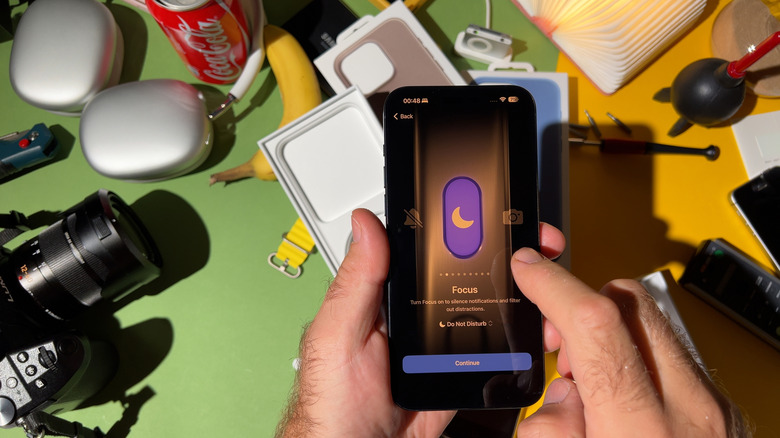
While Apple has an official name for the crescent-moon symbol (the Do Not Disturb icon), the company hasn’t explained why it chose it. The symbol makes sense for the original functionality of Do Not Disturb, which was aimed at nighttime and sleep use. Various moon symbols can be associated with the night, when people go to sleep and require quiet time. You could enable Do Not Disturb at any point throughout the day, whether it was for work, class, or periods when you wanted to avoid distractions. Whenever you used it, the main purpose was to block calls and notifications.
When Apple introduced Focus modes, it didn’t give users an option to change the crescent to something else. Today, iOS 26 still uses a non-customizable crescent-moon icon for the Do Not Disturb mode, and Apple’s decision to keep the symbol in place makes sense from a continuity standpoint. In the almost 10 years between iOS 6 and iOS 15, many iPhone users have become accustomed to the Do Not Disturb feature and crescent symbol. The symbol may not have visually matched all Focus modes in iOS 15, but existing iPhone users already associated it with quiet time. Seeing the symbol in the Settings app, Action button settings, or Control Center signals that this is the Do Not Disturb, or Focus mode, toggle you were looking for.
However, iPhone users can customize each Focus mode with a color and separate icon, which will appear in the list of available modes. When a Focus mode other than Do Not Disturb is enabled, the crescent-moon symbol is replaced with that mode’s icon.
Smarter Focus mode features
Focus modes are easy to use after you customize them in the Settings app. You can enable Focus modes from the Control Center or the Action button (on newer iPhones) whenever you need them. Also, for Focus modes you use frequently, like Sleep and Work modes, you can set schedules in the Settings app, and the Focus modes will turn on and off automatically. You can set specific Focus modes to be enabled when you reach a location or start an app. Also, Focus modes can sync across all of the user’s devices, including the Apple Watch, iPad, and Mac.
But there are other ways to enable Focus modes that don’t rely on automation. For example, iOS 18 introduced a Reduce Interruptions Focus mode that uses Apple Intelligence (on supported devices) to determine which notifications require your attention. The AI will look at the content of incoming notifications and determine whether they’re important or not. This Focus mode can be used in scenarios where you may be expecting an important call or text messages from people outside the friends and family already allowed by that Focus mode. The AI Focus mode has its own symbol, the Apple Intelligence icon, and that symbol isn’t customizable.
A different way to activate a Focus mode is to pair Focus modes with different Lock Screen wallpapers. This customization allows you to enable Focus modes from the Lock Screen. Choose the wallpaper associated with a Focus mode, and that mode will be enabled. This feature is also a good opportunity to cycle various wallpaper images by switching between Focus modes, instead of relying on a single one. The crescent-moon symbol or a custom Focus mode’s icon will also appear in the status bar when you switch between these wallpapers.



