Read more at:
Your Nintendo Switch 2 is hiding a cool little secret. Launched back in June 2025, the sequel to Nintendo’s original hybrid console has plenty of features that can make it worth buying. Along with new Joy-Con 2 controllers and upgraded hardware, its backwards compatibility and increased storage make it a solid next-gen system. It’s great for accessing a wealth of games, new and old. However, in addition to the features you may already know about, the Nintendo Switch 2 also has another neat little trick up its sleeve.
We’re always surprised by some of the things a Nintendo Switch 2 can actually do, and it turns out connecting a keyboard and mouse is not only possible, it’s actually pretty easy. While you will need a USB keyboard (or mouse) to accomplish this, the process is incredibly straightforward. There are some benefits of connecting these peripherals to your machine, though you may find that you need to do some experimenting when it comes to figuring out game compatibility.
It’s interesting to find that the Nintendo Switch 2 natively supports these accessories, as it’s not really something Nintendo advertises with the system. Though the company can brick your system way easier than you may think, Nintendo actually mentions keyboard support in its help documentation, so there’s little to worry about on that front. Keeping that in mind, here’s how to get started with adding some additional accessories to your Nintendo Switch 2.
How to use a keyboard on a Nintendo Switch 2 (and why)
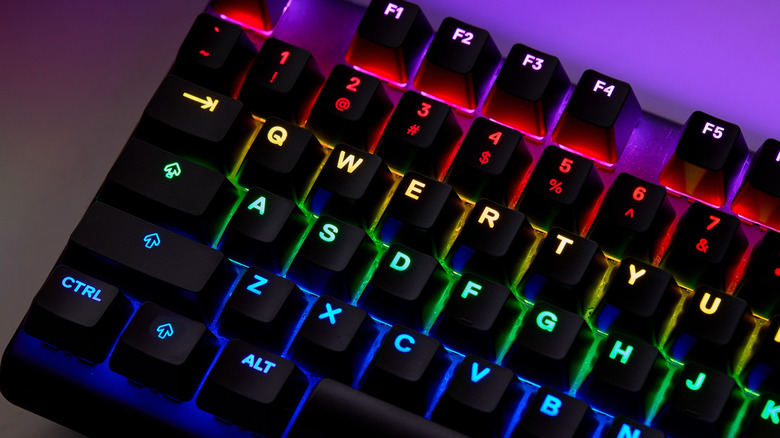
A keyboard with a Nintendo Switch 2 can be useful for a variety of purposes. For example, you can use a keyboard and mouse combo with a game like Cyberpunk: 2077, which may be preferred by those used to playing these games on a PC. You can also use a keyboard for messaging other users within GameChat, the Switch 2’s built-in messaging feature.
If you’re looking to connect a keyboard to your Nintendo Switch 2, it’s actually a pretty easy process. There’s either the option of connecting it directly to the Switch 2 through the USB-C port at the top of the device, or you can place the Switch in its dock and connect a keyboard through the dock’s USB-A inputs. You can find the ports on the side of the dock, but note that if you connect a mouse, it overrides a Joy-Con controller’s pointer system. This means you’ll be navigating the screen with the mouse.
While making the connection is as simple as plugging things into a USB port, there are a couple of items to note. You’ll have to go with the dock option if you want to use both a keyboard and a mouse at the same time, and keep in mind that not every game is going to feature mouse and keyboard support. It may take a bit of experimentation on your part, but if you have either of these accessories lying around, it’s worth giving a try. And, hey, once you have some new toys connected, you might also be inspired to figure out how to transfer your games to the Nintendo Switch 2.



